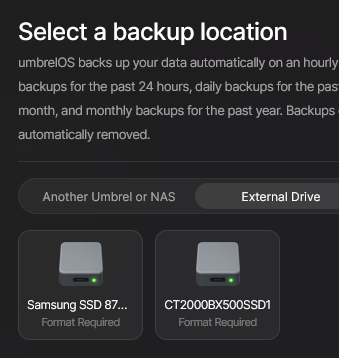
Until a proper fix is released, this is the setup I’m using for automated full backups without touching Umbrel internals. Hope it helps. This approach worked for me and survives reboots.
Temporary Fix for Umbrel OS 1.5 Backup Bug
Tested on: Umbrel OS 1.5 · Raspberry Pi 5 8GB · External USB HDD
Full Backup Using rsync + Telegram Bot Alerts (Copy-Paste Guide)
- Daily rsync backup
- Weekly “Nextcloud-consistent” full backup (maintenance mode ON during sync)
- Telegram alerts + manual commands
 Backup Drive Is Not Auto-Mounted.
Reboot Umbrel with the backup drive unplugged.
Plug in the backup drive only when backups are needed.
Backup scripts first check that the drive is mounted and safely exit if it isn’t.
Step 1 — SSH into Umbrel
From your computer:
ssh umbrel@umbrel.local
Step 2 — Plug in your USB backup drive
 Formatting will erase the backup drive completely.
Then run:
lsblk
You’ll see a list like:
mmcblk0 (your SD card)sda / sdb (your USB drive)
Look for the one with the right size.
Example output (yours might differ)
umbrel@umbrel:~$ lsblk
NAME        MAJ:MIN RM   SIZE RO TYPE MOUNTPOINTS
sda           8:0    0 931.5G  0 disk
└─sda1        8:1    0 931.5G  0 part /mnt/root/swap
                                      /swap
                                      /data/umbrel-os/var/lib/docker
                                      /mnt/root/var/lib/docker
                                      /var/lib/docker
                                      /data/umbrel-os/home/umbrel/umbrel
                                      /home/umbrel/umbrel
                                      /mnt/root/mnt/data
                                      /mnt/data
sdb           8:16   0   1.8T  0 disk
└─sdb1        8:17   0   1.8T  0 part /mnt/root/mnt/umbrel-backup
                                      /mnt/root/sd-root/mnt/umbrel-backup
                                      /sd-root/mnt/umbrel-backup
                                      /mnt/umbrel-backup
mmcblk0     179:0    0  29.7G  0 disk
├─mmcblk0p1 179:1    0   256M  0 part /run/rugpi/mounts/config
├─mmcblk0p2 179:2    0   128M  0 part /boot
├─mmcblk0p3 179:3    0   128M  0 part
├─mmcblk0p4 179:4    0     1K  0 part
├─mmcblk0p5 179:5    0     5G  0 part /run/rugpi/mounts/system
├─mmcblk0p6 179:6    0     5G  0 part
└─mmcblk0p7 179:7    0  19.2G  0 part /mnt/root/var/log
                                      /var/log
                                      /mnt/root/var/lib/systemd/timesync
                                      /var/lib/systemd/timesync
                                      /mnt/root/var/lib/docker
                                      /var/lib/docker
                                      /home
                                      /kopia
                                      /data
                                      /run/rugpi/state
                                      /run/rugpi/mounts/data
zram0       254:0    0   5.9G  0 disk [SWAP]
In this example, my backup drive is /dev/sdb and the partition is /dev/sdb1.
Step 3 — Unmount the drive (if it’s mounted)
sudo umount /dev/sdb1 2>/dev/null || true
(Replace sdb1 with your real partition.)
Step 4 — Format the drive (EXT4) + label it umbrel-backup
If the drive already has partitions and you want a clean setup:
This creates one big EXT4 partition.
sudo parted -s /dev/sdb mklabel gpt
sudo parted -s /dev/sdb mkpart primary ext4 0% 100%
sudo mkfs.ext4 -L umbrel-backup /dev/sdb1
Now the drive is formatted and named umbrel-backup.
Step 5 — Create mount folder: /mnt/umbrel-backup
sudo mkdir -p /mnt/umbrel-backup
sudo chown umbrel:umbrel /mnt/umbrel-backup
Step 6 — Mount the drive there
Identify the partition (likely /dev/sdb1):
lsblk -f
Then mount it:
sudo mount /dev/sdb1 /mnt/umbrel-backup
sudo chown -R umbrel:umbrel /mnt/umbrel-backup
Verify:
mount | grep /mnt/umbrel-backup
You should see /mnt/umbrel-backup.
Also verify free space:
df -h /mnt/umbrel-backup
Step 7 — Create backup destination folder
sudo mkdir -p /mnt/umbrel-backup/umbrel-full
sudo chown -R umbrel:umbrel /mnt/umbrel-backup
PART 2 — TELEGRAM BOT (ALERTS + COMMANDS)
Telegram bot security note
- Any user who knows the bot can issue commands.
- The Telegram bot is not required for backups to work.
- If you don’t want Telegram, simply:
- skip all Telegram bot steps,
- remove the
NOTIFY=... lines from the scripts, or
- replace them with simple
echo messages.
Step 8 — Create the Telegram bot
In Telegram:
- Find @BotFather account
- Send
/newbot
- Choose a name and username
- Copy your BOT TOKEN
Step 9 — Get your chat ID
Message @userinfobot
Copy your numeric ID (example: 123456789)
Step 10 — Create Telegram config file
sudo nano /etc/umbrel-telegram.conf
Paste:
BOT_TOKEN="PASTE_YOUR_BOT_TOKEN"
CHAT_ID="PASTE_YOUR_CHAT_ID"
ALLOWED_USERS="PASTE_YOUR_CHAT_ID"
Save:
Ctrl + O → EnterCtrl + X
Step 11 — Telegram send script
sudo mkdir -p /home/umbrel/umbrel/scripts
sudo nano /home/umbrel/umbrel/scripts/telegram-send.sh
Paste:
#!/usr/bin/env bash
set -euo pipefail

source /etc/umbrel-telegram.conf

MSG="$1"
HOST="$(hostname)"

curl -s -X POST "https://api.telegram.org/bot${BOT_TOKEN}/sendMessage" \
  -d chat_id="${CHAT_ID}" \
  -d text="[$HOST] ${MSG}" \
  >/dev/null
Save:
Ctrl + O → EnterCtrl + X
Enable:
chmod +x /home/umbrel/umbrel/scripts/telegram-send.sh
Test:
sudo /home/umbrel/umbrel/scripts/telegram-send.sh "✅ Telegram test OK"
You should receive this message in your Telegram Bot.
PART 3 — BACKUP SCRIPTS
The backup scripts and systemd timers work fully on their own.
Step 12 — Daily backup script (fast, safe)
Create umbrel-sync-daily.sh
sudo nano /home/umbrel/umbrel/scripts/umbrel-sync-daily.sh
Paste:
#!/usr/bin/env bash
set -uo pipefail

SRC="/home/umbrel/umbrel"
DST="/mnt/umbrel-backup/umbrel-full"
LOCK="/run/umbrel-sync.lock"
NOTIFY="/home/umbrel/umbrel/scripts/telegram-send.sh"

echo "Daily sync started at $(date)"

# Only run if backup drive is mounted
if ! mountpoint -q /mnt/umbrel-backup; then
  echo "Backup drive not mounted, skipping"
  exit 0
fi

# Prevent overlapping runs
exec 9>"$LOCK"
if ! flock -n 9; then
  echo "Another sync is running, skipping"
  exit 0
fi

mkdir -p "$DST"

if /usr/bin/ionice -c2 -n7 /usr/bin/nice -n 10 \
   /usr/bin/rsync -a --delete --numeric-ids --inplace \
   "$SRC/" "$DST/"; then
  echo "Daily sync finished successfully"
  $NOTIFY "✅ Daily Umbrel sync completed successfully"
else
  echo "Daily sync FAILED"
  $NOTIFY "❌ Daily Umbrel sync FAILED"
fi
Save:
Ctrl + O → EnterCtrl + X
Enable:
chmod +x /home/umbrel/umbrel/scripts/umbrel-sync-daily.sh
Step 13 — Weekly FULL backup (Nextcloud-safe)
Create umbrel-sync-weekly.sh
sudo nano /home/umbrel/umbrel/scripts/umbrel-sync-weekly.sh
Paste:
#!/usr/bin/env bash
set -uo pipefail

SRC="/home/umbrel/umbrel"
DST="/mnt/umbrel-backup/umbrel-full"
LOCK="/run/umbrel-sync.lock"
NOTIFY="/home/umbrel/umbrel/scripts/telegram-send.sh"

echo "Weekly sync started at $(date)"

# Only run if backup drive is mounted
if ! mountpoint -q /mnt/umbrel-backup; then
  echo "Backup drive not mounted, skipping"
  exit 0
fi

# Prevent overlap with daily sync
exec 9>"$LOCK"
if ! flock -n 9; then
  echo "Another sync is running, skipping"
  exit 0
fi

mkdir -p "$DST"

# Detect Nextcloud container
NC_CONTAINER="$(docker ps --format '{{.Names}}' | awk '
  $0=="nextcloud"{print; exit}
  index(tolower($0),"nextcloud"){print; exit}
')"

maintenance_on() {
  [[ -n "${NC_CONTAINER:-}" ]] || return 0
  echo "Enabling Nextcloud maintenance mode"
  docker exec -i "$NC_CONTAINER" php occ maintenance:mode --on || true
}

maintenance_off() {
  [[ -n "${NC_CONTAINER:-}" ]] || return 0
  echo "Disabling Nextcloud maintenance mode"
  docker exec -i "$NC_CONTAINER" php occ maintenance:mode --off || true
}

# ALWAYS turn maintenance mode off
trap maintenance_off EXIT

maintenance_on

if /usr/bin/ionice -c2 -n7 /usr/bin/nice -n 10 \
   /usr/bin/rsync -a --delete --numeric-ids \
   "$SRC/" "$DST/"; then
  echo "Weekly sync finished successfully"
  $NOTIFY "✅ Weekly Umbrel FULL sync completed (Nextcloud consistent)"
else
  echo "Weekly sync FAILED"
  $NOTIFY "❌ Weekly Umbrel FULL sync FAILED"
fi
Save:
Ctrl + O → EnterCtrl + X
Enable:
chmod +x /home/umbrel/umbrel/scripts/umbrel-sync-weekly.sh
PART 4 — SCHEDULING (AUTOMATIC)
Step 14 — Daily systemd timer
Create umbrel-sync-daily.service
sudo nano /etc/systemd/system/umbrel-sync-daily.service
Paste:
[Unit]
Description=Umbrel daily full sync
ConditionPathIsMountPoint=/mnt/umbrel-backup

[Service]
Type=oneshot
ExecStart=/home/umbrel/umbrel/scripts/umbrel-sync-daily.sh
Save:
Ctrl + O → EnterCtrl + X
Create umbrel-sync-daily.timer
sudo nano /etc/systemd/system/umbrel-sync-daily.timer
Paste:
[Unit]
Description=Run Umbrel daily sync

[Timer]
OnCalendar=*-*-* 03:30:00
Persistent=true

[Install]
WantedBy=timers.target
Save:
Ctrl + O → EnterCtrl + X
Enable:
sudo systemctl daemon-reload
sudo systemctl enable --now umbrel-sync-daily.timer
Step 15 — Weekly timer (Sunday)
Create umbrel-sync-weekly.service
sudo nano /etc/systemd/system/umbrel-sync-weekly.service
Paste:
[Unit]
Description=Umbrel weekly consistent full sync
ConditionPathIsMountPoint=/mnt/umbrel-backup

[Service]
Type=oneshot
ExecStart=/home/umbrel/umbrel/scripts/umbrel-sync-weekly.sh
Save:
Ctrl + O → EnterCtrl + X
sudo nano /etc/systemd/system/umbrel-sync-weekly.timer
Paste:
[Unit]
Description=Run Umbrel weekly consistent sync

[Timer]
OnCalendar=Sun *-*-* 04:30:00
Persistent=true

[Install]
WantedBy=timers.target
Enable:
sudo systemctl daemon-reload
sudo systemctl enable --now umbrel-sync-weekly.timer
Verify:
systemctl list-timers | grep umbrel-sync
You must see umbrel-sync-daily.service and umbrel-sync-weekly.service are active.
PART 5 — TELEGRAM BOT COMMANDS
Step 16 — /health command
Create health-check.sh (bundled checks)
sudo nano /home/umbrel/umbrel/scripts/health-check.sh
Paste:
#!/usr/bin/env bash
set -euo pipefail

NOTIFY="/home/umbrel/umbrel/scripts/telegram-send.sh"
HOST="$(hostname)"
STATE_FILE="/run/health-check.last"

FORCE=0
[[ "${1:-}" == "--force" ]] && FORCE=1

ALERTS=()

###############################################################################
# 1) Disk space — Umbrel data mount
###############################################################################
DISK_THRESHOLD=90
if df -hP /mnt/root/mnt/data >/dev/null 2>&1; then
  read -r pct mount < <(df -hP /mnt/root/mnt/data | awk 'NR==2 {print $5,$6}')
  pct="${pct%\%}"
  if [[ "$pct" =~ ^[0-9]+$ ]] && [ "$pct" -ge "$DISK_THRESHOLD" ]; then
    ALERTS+=("⚠️ Umbrel data disk ${pct}% full (${mount})")
  fi
else
  ALERTS+=("❌ Umbrel data disk not mounted")
fi

###############################################################################
# 2) Docker availability (MUST be first)
###############################################################################
if ! docker info >/dev/null 2>&1; then
  ALERTS+=("❌ Docker daemon not responding")
fi

###############################################################################
# 3) App health (Umbrel-aware)
###############################################################################
IGNORE_REGEX='(tor_server|app_proxy|^auth$|^tor_proxy$)'

# Build map: app -> up/down
declare -A APP_HAS_UP
declare -A APP_HAS_ANY

while read -r name status; do
  [[ -z "$name" ]] && continue

  if echo "$name" | grep -Eq "$IGNORE_REGEX"; then
    continue
  fi

  app="${name%%_*}"
  APP_HAS_ANY["$app"]=1

  if [[ "$status" == Up* ]]; then
    APP_HAS_UP["$app"]=1
  fi
done <<< "$(docker ps -a --format '{{.Names}} {{.Status}}' || true)"

check_app() {
  local app="$1"
  if [[ -n "${APP_HAS_ANY[$app]:-}" ]] && [[ -z "${APP_HAS_UP[$app]:-}" ]]; then
    ALERTS+=("❌ ${app} appears down (no running containers)")
  fi
}

check_app nextcloud
check_app adguard-home
check_app cloudflared
check_app tailscale

###############################################################################
# 4) Deduplicated notification
###############################################################################
STATE_TEXT="$(printf "%s\n" "${ALERTS[@]}" | sort)"
CURRENT_HASH="$(printf "%s" "$STATE_TEXT" | sha256sum | awk '{print $1}')"
LAST_HASH="$(cat "$STATE_FILE" 2>/dev/null || true)"

send_ok() {
  "$NOTIFY" "✅ Health check OK on ${HOST}"
}

send_issues() {
  local msg="🚨 Health check issues on ${HOST}:\n"
  while read -r line; do
    [ -n "$line" ] && msg+="- ${line}\n"
  done <<< "$STATE_TEXT"
  "$NOTIFY" "$msg"
}

if [[ "$FORCE" -eq 1 ]]; then
  # Manual /health always responds
  if [ "${#ALERTS[@]}" -eq 0 ]; then
    send_ok
  else
    send_issues
  fi
elif [[ "$CURRENT_HASH" != "$LAST_HASH" && "${#ALERTS[@]}" -gt 0 ]]; then
  # Automatic runs: alert ONLY on problems
  send_issues
  echo "$CURRENT_HASH" > "$STATE_FILE"
fi
Save:
Ctrl + O → EnterCtrl + X
Enable:
chmod +x /home/umbrel/umbrel/scripts/health-check.sh
— Automatic health checks (systemd timer)
sudo nano /etc/systemd/system/umbrel-health-check.service
Paste:
[Unit]
Description=Umbrel health check

[Service]
Type=oneshot
ExecStart=/home/umbrel/umbrel/scripts/health-check.sh
Save:
Ctrl + O → EnterCtrl + X
— Timer (every 30 minutes)
sudo nano /etc/systemd/system/umbrel-health-check.timer
Paste:
[Unit]
Description=Run Umbrel health check

[Timer]
OnCalendar=*:0/30
Persistent=true

[Install]
WantedBy=timers.target
Save:
Ctrl + O → EnterCtrl + X
Enable:
sudo systemctl daemon-reload
sudo systemctl enable --now umbrel-health-check.timer
Step 17 — /apps command
You can see all installed apps.
Create apps-status.sh
sudo nano /home/umbrel/umbrel/scripts/apps-status.sh
Paste:
#!/usr/bin/env bash
set -euo pipefail

IGNORE_REGEX='(tor_server|app_proxy|^auth$|^tor_proxy$)'

declare -A APP_UP
declare -A APP_ANY

while read -r name status; do
  [[ -z "$name" ]] && continue
  if echo "$name" | grep -Eq "$IGNORE_REGEX"; then
    continue
  fi
  app="${name%%_*}"
  APP_ANY["$app"]=1
  [[ "$status" == Up* ]] && APP_UP["$app"]=1
done <<< "$(docker ps -a --format '{{.Names}} {{.Status}}')"

for app in "${!APP_ANY[@]}"; do
  if [[ -n "${APP_UP[$app]:-}" ]]; then
    echo "✅ $app"
  else
    echo "❌ $app"
  fi
done | sort
Enable:
chmod +x /home/umbrel/umbrel/scripts/apps-status.sh
Step 18 — /restart [app] command
You can restart apps via Telegram bot. Example: /restart nextcloud
Create restart-app.sh
sudo nano /home/umbrel/umbrel/scripts/restart-app.sh
Paste:
#!/usr/bin/env bash
set -euo pipefail

APP="$1"
[[ -z "$APP" ]] && {
  echo "No app specified"
  exit 1
}

# Verify umbreld exists
if ! command -v umbreld >/dev/null 2>&1; then
  echo "umbreld not found"
  exit 2
fi

# Verify app exists (optional but safer)
if ! umbreld client apps.list.query | grep -q "\"id\": \"$APP\""; then
  echo "App not found: $APP"
  exit 3
fi

# Restart app via Umbrel daemon (authoritative)
umbreld client apps.restart.mutate --appId "$APP"
Enable:
chmod +x /home/umbrel/umbrel/scripts/restart-app.sh
Step 19 — /help command
Hardcoded, explicit. Shows command list.
Step 20 — Telegram listener for commands
Create telegram-listener.sh
sudo nano /home/umbrel/umbrel/scripts/telegram-listener.sh
Paste:
#!/usr/bin/env bash
set -euo pipefail

source /etc/umbrel-telegram.conf

API="https://api.telegram.org/bot${BOT_TOKEN}"
OFFSET_FILE="/run/telegram-offset"

OFFSET=0
[[ -f "$OFFSET_FILE" ]] && OFFSET=$(cat "$OFFSET_FILE")

echo "Telegram listener started"

while true; do
  UPDATES=$(curl -s "${API}/getUpdates?timeout=30&offset=${OFFSET}")

  # Number of updates
  COUNT=$(echo "$UPDATES" | jq '.result | length')
  [[ "$COUNT" -eq 0 ]] && continue

  for ((i=0; i<COUNT; i++)); do
    u=$(echo "$UPDATES" | jq -c ".result[$i]")

    UPDATE_ID=$(echo "$u" | jq '.update_id')
    TEXT=$(echo "$u" | jq -r '.message.text // empty')
    IS_BOT=$(echo "$u" | jq -r '.message.from.is_bot // false')
    FROM_ID=$(echo "$u" | jq -r '.message.from.id // empty')

    # Advance offset FIRST (critical)
    OFFSET=$((UPDATE_ID + 1))
    echo "$OFFSET" > "$OFFSET_FILE"

    # Ignore bot messages
    [[ "$IS_BOT" == "true" ]] && continue

    # Allow only whitelisted users
    [[ ",$ALLOWED_USERS," != *",$FROM_ID,"* ]] && continue

    # Map restart_<app> → /restart <app>
    if [[ "$TEXT" =~ ^/restart_([a-zA-Z0-9_-]+)$ ]]; then
      TEXT="/restart ${BASH_REMATCH[1]}"
    fi

    case "$TEXT" in
      "/health")
        sudo /home/umbrel/umbrel/scripts/health-check.sh --force
        ;;

      "/apps")
        OUT=$(sudo /home/umbrel/umbrel/scripts/apps-status.sh)
        /home/umbrel/umbrel/scripts/telegram-send.sh "📦 App status:
$OUT"
        ;;

      "/backup")
        sudo systemctl start umbrel-sync-daily.service
        ;;

      "/restart "*)
        APP="${TEXT#/restart }"
        if sudo /home/umbrel/umbrel/scripts/restart-app.sh "$APP"; then
          /home/umbrel/umbrel/scripts/telegram-send.sh "🔄 Restarted app: $APP"
        else
          /home/umbrel/umbrel/scripts/telegram-send.sh "❌ Cannot restart app: $APP"
        fi
        ;;

      "/help")
        /home/umbrel/umbrel/scripts/telegram-send.sh \
"🤖 Umbrel Bot Commands:
/help - Show Available Commands
/health - System Health Check
/backup - Trigger Daily Backup
/apps - List App Status
/restart <app> - Restarts any app"
        ;;
    esac
  done
done
Save:
Ctrl + O → EnterCtrl + X
Enable:
sudo apt install jq -y
chmod +x /home/umbrel/umbrel/scripts/telegram-listener.sh
Run listener as a service:
sudo nano /etc/systemd/system/telegram-listener.service
Paste:
[Unit]
Description=Telegram command listener
After=network-online.target

[Service]
ExecStart=/home/umbrel/umbrel/scripts/telegram-listener.sh
Restart=always
RestartSec=5

[Install]
WantedBy=multi-user.target
Save:
Ctrl + O → EnterCtrl + X
Enable:
sudo systemctl daemon-reload
sudo systemctl enable --now telegram-listener.service
Verify:
sudo systemctl status telegram-listener.service --no-pager
You must see: Active: active (running)
Restore sanity check:
This reassures users that backups aren’t empty.
ls /mnt/umbrel-backup/umbrel-full/umbrel.yaml
Note: Make sure to start or reboot Umbrel with the backup drive unplugged. Having both drives connected caused Umbrel to detect the backup drive first in my setup.